 NomadSwipe
How to export TripIt data
How to export TripIt data: on the TripIt website, open a trip's More Options and choose Export trip to calendar to download an .ics file, or turn on the calendar feed to subscribe your calendar. You can print a trip there too. For CSV or JSON I found no TripIt button, only third-party tools built on its API.
Every export route at a glance
| What comes out | Format | Where | Plan needed |
|---|---|---|---|
| All trips, kept up to date | Calendar feed URL (read-only), trips from the last 90 days | App or website, in Settings | None named in the help article; the pricing page lists calendar sync on the free plan |
| One trip, one time | .ics calendar file | Website only: Trips page, More Options, Export trip to calendar | None named |
| One trip on paper | Print dialog, with options to hide maps and directions or show all details | Website only: More Options, Print Trip (not in the app) | None named |
| One trip for another person | Private invitation or a public link; the link hides confirmation numbers, frequent traveler data, total cost and documents | Website: Manage Sharing | The pricing page lists sharing on the free plan; only Inner Circle (automatic sharing) is named as Pro |
| Trip data as a spreadsheet | Excel or CSV, from a third-party site that reads the TripIt API | tripexporter.com, logging in with your TripIt account | Not stated by TripIt; the tool says it is not endorsed by TripIt |
| Trip data as JSON or CSV | Script on the TripIt API, for developers | Open-source scripts on GitHub, some now archived | Not stated; the API's simple login is off by default and enabled by emailing TripIt support |
Step by step
-
1. Subscribe your calendar to the TripIt feed.
This is the only route that keeps updating. Turn the feed on first: in the app tap Account, Settings, Calendar Sync and enable the calendar feed toggle; on the website click the profile icon, Settings, Calendar Feed and enable the toggle. Copy the feed URL there, then add it by URL: in Google Calendar click the plus next to Other calendars, choose From URL, paste it and select Add Calendar; in Apple Calendar choose File, New Calendar Subscription, paste it and click Subscribe. TripIt's page also lists Outlook 2010 (Open Calendar, From Internet) and in-app routes for iOS and Android.
The limits are on TripIt's pages. The feed is read-only, refreshes between 15 minutes and 24 hours depending on the calendar, and does not work with Lotus Notes or Outlook 2013 and later. A second help page says the feed shows only the last 90 days of trips. TripIt's pricing page lists calendar sync on the free plan.
-
2. Download one trip as an .ics file.
Use this for trips older than 90 days, for a shared trip where you are not a traveler, or when you want a fixed copy. On the TripIt website go to the Trips page, click More Options, choose Export trip to calendar, then save the file. In your calendar open File, Import and select that .ics file. TripIt warns that it is a one-time copy (later changes are not reflected), that it must be done for each trip, and that some customers open the file instead of importing it. The help article says exporting a calendar file is only available on the website.
-
3. Print a trip.
On the website, select the trip on the Trips page, click More Options, choose Print Trip, decide whether to hide maps and directions or show all available details, and click Print Trip. TripIt says printing is not yet available in the app. The help page says nothing about saving a PDF, so whether you can pick a PDF printer depends on your own browser or computer, not on TripIt.
-
4. Share a trip with a person or a link.
This puts the itinerary in someone else's hands rather than in a file. Select the trip, click Manage Sharing, then Invite. A private invitation takes an email address and a permission (view, edit, or edit and is traveling). A public link is created with Copy the URL, and TripIt says to use it cautiously because trips hold dates, hotel names and flight numbers. Only people with edit permission see confirmation numbers, total cost, frequent traveler information and attached documents; the public link shows none of them. TripIt also lists sharing on Facebook, LinkedIn and X, and Inner Circle for TripIt Pro. To turn public links off: profile icon, Account, Trip Sharing/Inner Circle, then the Public Sharing toggle.
-
5. For CSV or JSON, use a third-party tool built on the API.
I found no CSV or JSON export on TripIt's help pages. Two kinds of tool fill the gap. Trip Exporter (tripexporter.com) says it lets you view, export and download your TripIt data to an Excel or CSV file and that it fetches your data from the TripIt API without collecting or storing it. It describes itself as a hobby project that may go down, and says it is not endorsed or certified by TripIt. The second kind is open-source scripts: jschnurr's tripit-export on GitHub exports a list of trips to JSON or CSV, but the repository was archived in 2026 and is read-only.
Scripts need API access. TripIt's API documentation says its simple username-and-password login is for testing and development, is off by default for every user, and is turned on by emailing support@tripit.com. Production apps are meant to use OAuth. That login sends your TripIt email and password with each request, so treat any tool that asks for it as a risk and do not hand it to code you have not read. The API also returns flight status data for TripIt Pro subscribers.
What you get out, and what you lose
- You get itineraries, not a full backup. The calendar routes give you events for each trip, such as flights and hotel stays. I did not open an .ics file, so I cannot list which fields it holds.
- Confirmation numbers are not on the public link. If you need them for a record, use a private invitation with edit permission, or keep the original confirmation emails.
- Old trips fall off the feed. Only the last 90 days appear, so export older trips one by one.
- Saved places are not in there. TripIt builds trips from bookings in confirmation emails and manual entries, and I found no saved-places list on the pages I read, so there is no such data to export. TripIt's pricing page does list finding places near your hotel, but that is a feature of the app, not a file you can download.
- Exporting changes nothing in your account. Your trips stay in TripIt.
What to do with exported data next
Match the file to the job. The table lists the main uses, with one that is a different need.
| Option | Takes your TripIt export? | Use it for |
|---|---|---|
| 1. NomadSwipe (Android). Different need: swiping real places, not importing bookings | No. It has no import feature and does not read bookings | Deciding what to see and eat in a city, then keeping the saved places on a map |
| 2. A calendar app | Yes, the feed URL or the .ics file | Seeing flights and hotel stays next to everything else in your week |
| 3. A spreadsheet | Yes, if you got CSV or Excel from a third-party tool | Travel diaries, expense claims, tax or visa records (the uses Trip Exporter names) |
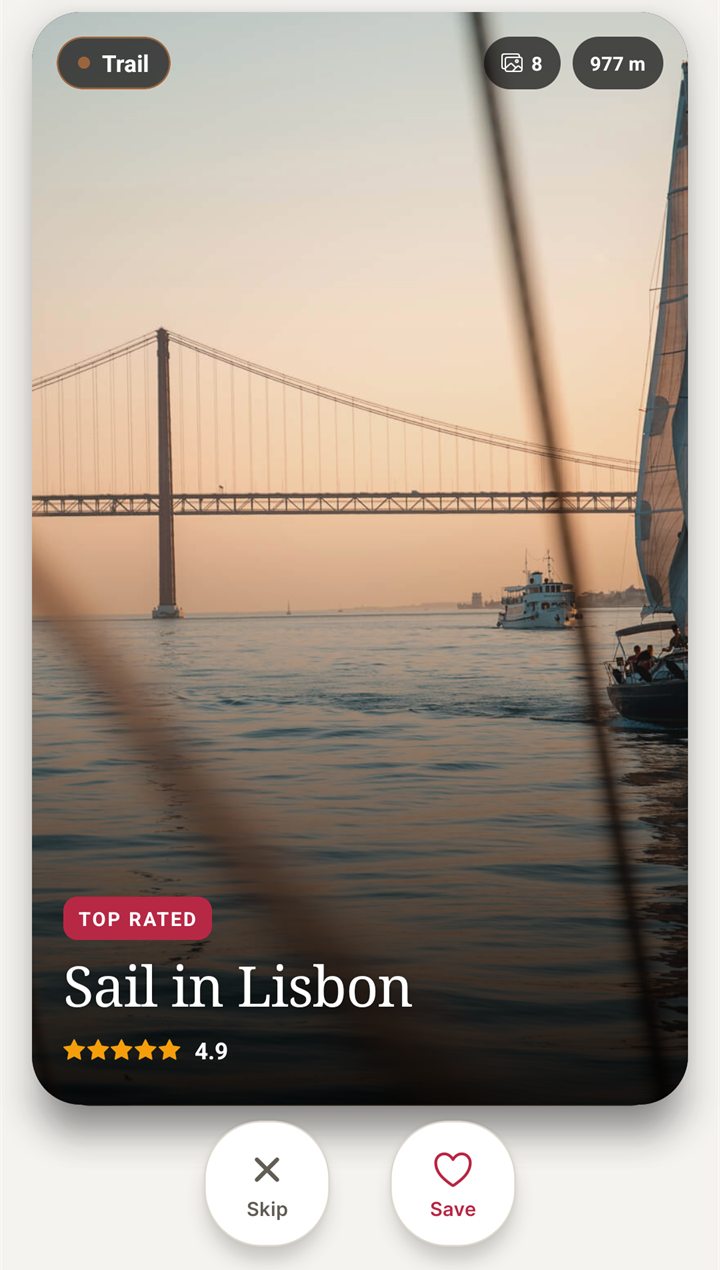
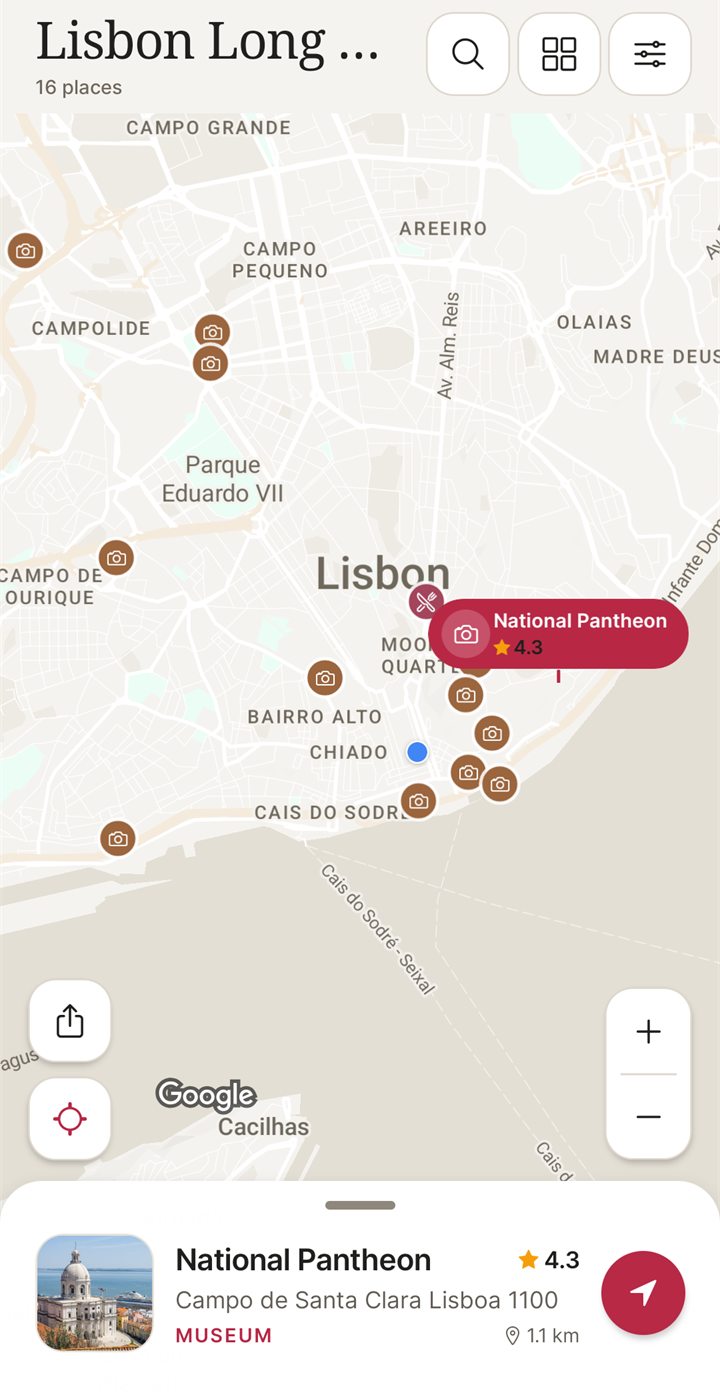
If you want to move the places you plan to visit into a trip planner, the export gives you anchors rather than places: the dates and the hotel address from your bookings. Copy those by hand into whichever planner you use, then add the places there. NomadSwipe is not somewhere to send the file. It covers the other half of a trip: you swipe real places in a city, save the ones you like, see them on a map, build a trip and sort the list by rating, distance or A to Z. That starts from the city, not from a booking. iPhone is coming soon.
For the setup side of TripIt, see how to use TripIt, and for other tools that do its job or a neighbouring one, TripIt alternatives compared. To shortlist places once you land, how I shortlist things to do in a new city shows the method.
Pair your bookings with a plan for the city
NomadSwipe lets you swipe real places in a city, save the ones you like and see them on a map. It is Android only for now.
Get NomadSwipe on Google PlayAndroid only today; iPhone is coming soon.
Questions about exporting TripIt data
How do I export TripIt data?
TripIt's help pages describe four routes: subscribe your calendar to the calendar feed, download one trip as an .ics file (Trips page, More Options, Export trip to calendar, website only), print a trip from the website, or share it with a private invitation or a public link. For CSV or JSON there is no button on the help pages I read; third-party tools such as Trip Exporter use TripIt's API.
Can I export all my TripIt trips at once?
Not as one file from the pages I read. The calendar feed shows your trips for the last 90 days, and the .ics download is one trip at a time. Trip Exporter says it exports your TripIt data to Excel or CSV, which is a third-party route that needs your TripIt login.
Does TripIt export to CSV or Excel?
Not on TripIt's own help pages. Trip Exporter, a third-party site, says it fetches your data from the TripIt API and lets you export it to an Excel or CSV file. It says it is not endorsed or certified by TripIt.
Do I need TripIt Pro to export my data?
The help articles on the calendar feed, the .ics download and printing name no plan. TripIt's pricing page lists calendar sync and sharing on the free plan. Pro is named only for Inner Circle, which shares trips automatically with trusted people.
Can I move my TripIt trips into NomadSwipe?
No. NomadSwipe (Android) has no import feature, and it does a different job: you pick a city, swipe real places and save the ones you like. It does not read bookings.
Findings, method and sample
Sample and method. On 20 November 2026 I read the TripIt pages cited here (the how-it-works page, the pricing page and 5 help-centre articles on the calendar feed, exporting one trip, past trips on the calendar, printing and trip sharing), the TripIt API documentation, the Trip Exporter site and two GitHub repositories. I took menu names, limits and plan details from them only. I did not sign in to TripIt, run a tool or open an exported file, so none of this is a measured result.
- Four routes are described by TripIt itself: calendar feed, one-trip .ics file, print (website only) and sharing.
- The feed covers the last 90 days, is read-only and refreshes in 15 minutes to 24 hours. The .ics file is a one-time copy per trip.
- No help page I read names a plan for the feed, .ics file or printing. Inner Circle is the one Pro sharing feature named.
- No CSV or JSON export button appeared on the help pages I read. Trip Exporter and open-source scripts use the TripIt API instead.
- Not confirmed, so not a step: the README of one third-party viewer says a JSON copy of your data can be requested from TripIt support. I found no TripIt page that says so.
Limits: TripIt changes its menus and plans, so check its site before you rely on a step. Third-party tools can break or disappear, and a tool that asks for your TripIt password deserves a second thought.
Sources (read 20 Nov 2026)
- TripIt, how it works: https://www.tripit.com/web/free/how-it-works
- TripIt, pricing and plan features: https://www.tripit.com/web/pro/pricing
- TripIt help, calendar feed setup and sync: https://help.tripit.com/en/support/solutions/articles/103000063280-calendar-feed-setup-and-sync
- TripIt help, export an individual trip to your calendar: https://help.tripit.com/en/support/solutions/articles/103000063293-export-an-individual-trip-to-your-calendar
- TripIt help, past trips on your calendar: https://help.tripit.com/en/support/solutions/articles/103000063392-past-trips-on-your-calendar
- TripIt help, print your itinerary: https://help.tripit.com/en/support/solutions/articles/103000063412-print-your-itinerary
- TripIt help, trip sharing from the website: https://help.tripit.com/en/support/solutions/articles/103000063367-trip-sharing-from-the-tripit-website
- TripIt API documentation v1: https://tripit.github.io/api/doc/v1/
- Trip Exporter (third party): https://www.tripexporter.com/
- tripit-export, GitHub (third party, archived): https://github.com/jschnurr/tripit-export
- tripit-view, GitHub (third party, archived): https://github.com/carlossg/tripit-view
- NomadSwipe facts: the app itself and its public Google Play listing.