 NomadSwipe
How to plan a trip on a map, in 8 steps
Here is how to plan a trip on a map: save each place with its address, cut the list to a shortlist, see where the pins cluster, and give each cluster its own day. The eight steps work in Google Maps, Wanderlog, Mapstr or NomadSwipe.
The 8 steps
-
Fix the city and the number of days.
Write down one city and how many days you have. A map plan works best for one city at a time, because the whole point is to see which places sit near each other.
-
Collect candidates in one place.
Pull the places from your open tabs, screenshots and notes into one list or one map. Do not worry about order yet. If you keep a day-by-day sheet, the itinerary template gives you one to fill in later.
-
Save each one as a real place, not a note.
A place saved with its address can be pinned. A line in a notes app cannot. How to save, by tool:
- Google Maps: open the place, tap Save, then choose an existing list or create a new one.
- Wanderlog: tap Add a place at the bottom of a place list and type the place in.
- Mapstr: save addresses to your map, or import them from Google Maps, Foursquare, Instagram or TikTok.
- NomadSwipe: pick a city, then swipe right or press Save on a card. Each yes goes straight to the trip's shortlist.
-
Cut the list to a shortlist.
Keep the places you would be sorry to miss and drop the rest. A shortlist you chose is easier to map than a hundred saved pins. Searching and adding builds a long list; deciding yes or no per place builds a short one, which is the idea behind NomadSwipe's cards.
-
Look at the shortlist on a map.
This is the step that replaces a spreadsheet. Look for clumps of pins and for outliers that sit alone.
- Google Maps: each list can be shown or hidden on your main map, from You, then More next to the list.
- Wanderlog: add places to the Itinerary section and the map shows them with lines between each day's places.
- Mapstr: places sit on an interactive map, and you can add your own tags.
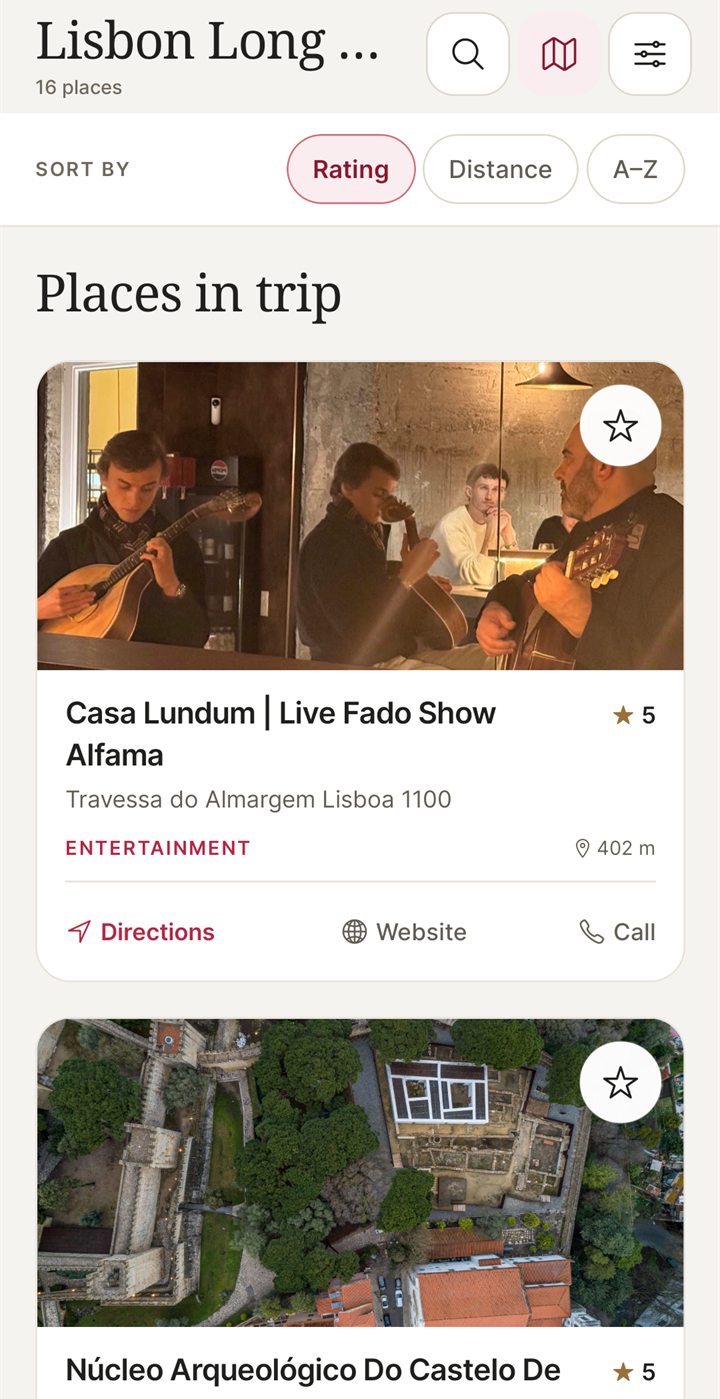
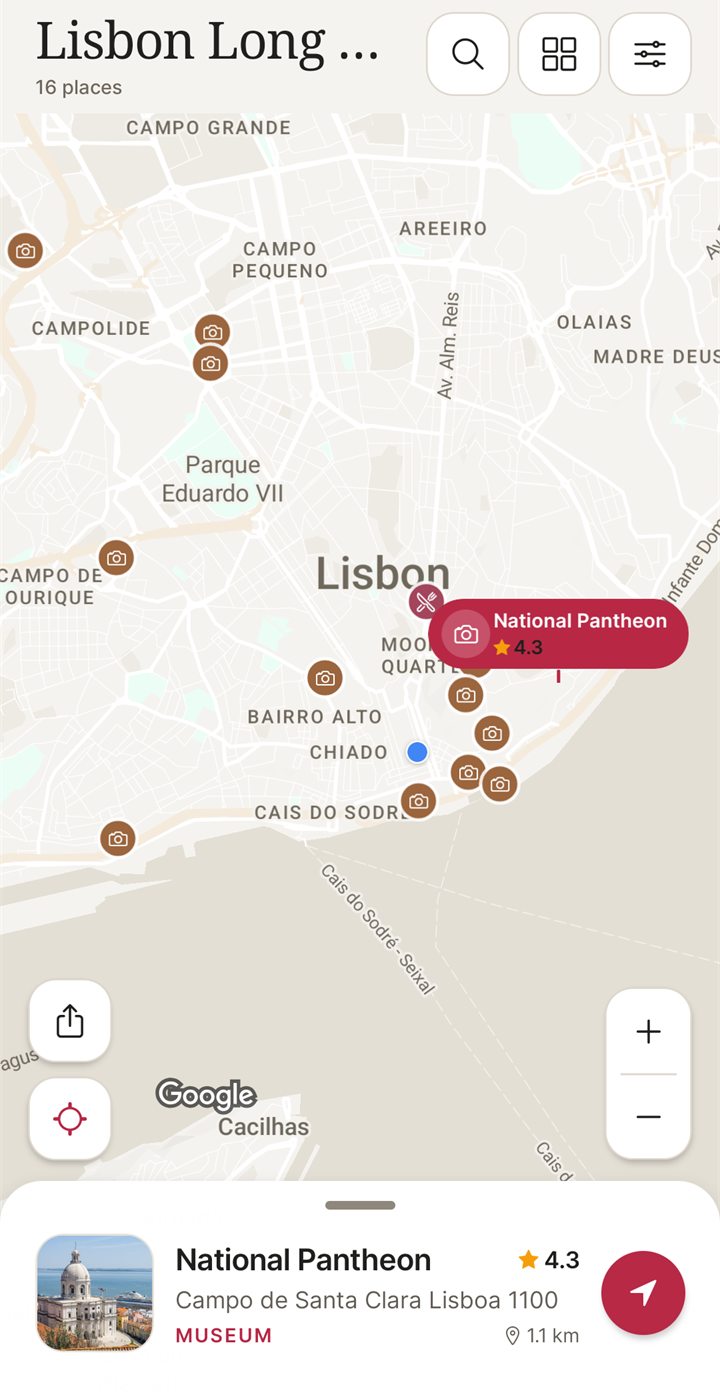
- NomadSwipe: open a trip and every saved place is pinned on the trip map. The list view sorts by rating, distance or A to Z.
-
Give each cluster its own day.
Assign one cluster to one day and keep a day to one or two neighborhoods. Wanderlog organizes its itinerary by day, so this step is built in there. In the other tools, make it yourself: one Google Maps list per day, one Mapstr tag per day, or one block per day on the day sheet. In NomadSwipe the map shows the clusters, and you plan each day around one neighborhood.
-
Order the stops and leave a buffer.
Put the farthest-flung stop first or last, not in the middle. Leave 20 to 30 minutes after each stop, and check each place's own opening days the day before, because many places close on one day of the week. Hours change, so do not trust a saved copy.
-
Add your base and make it work offline.
Pin your hotel, since cards and search results rarely include it (NomadSwipe has custom pins for this). Then check what your tool keeps offline before you leave Wi-Fi. The table below shows what each one says.
Four tools compared on the map-planning steps
Every cell comes from a help, FAQ or marketing page I read on 3 November 2026. Where the page I read was silent, the cell says so, and that is not the same as the feature being missing. Prices change, so check each tool before you pay. For fuller comparisons, see the Wanderlog alternatives, the Mapstr alternatives and best trip planner apps in 2026.
| Tool | Saving places | Mapping by day | Offline | Cost |
|---|---|---|---|---|
| Google Maps | Save a place to a list. Default lists are Favorites, Want to go, Starred places, Labeled and Travel plans. A list can be private or shared by link. | Each list can be shown or hidden on the main map. The help page I read describes lists, not days. | Download an area on Android. Driving and walking directions work offline inside it, transit and cycling do not. Maps expire and need updating. | Not stated on the pages I read. |
| Wanderlog | Add a place from a place list. Its homepage also offers adding places from guides in one click. | The itinerary is organized by day. The map shows lines, distances and travel times between each day's places, and you choose which days appear. | Its FAQ says the mobile app stores your trip plan. A Wanderlog blog post says offline maps are part of Premium. | Basic planning with a document and map is described as free. The same blog post says Premium starts at about $40 a year (post from October 2024). |
| Mapstr | Save addresses to a map and add custom tags. Import from Google Maps, Foursquare, Instagram and TikTok. | Tags and the map. The pages I read do not describe a day view. | Not mentioned on the pages I read. | The standard version allows 300 addresses. Mapstr Plus is monthly or annual, priced in the app, with no free trial. |
| NomadSwipe (Android, I built it) | Swipe real places in a city and save the ones you like to a shortlist per trip. Custom pins for anything the cards miss. | Every saved place is pinned on the trip map; the list sorts by rating, distance or A to Z. The listing describes no day-by-day schedule, so you group days yourself. | Up to 20 saved trips offline, listed as a Premium feature. Offline copies expire and need an online refresh. | Free plan: 3 trips, 2 searched places saved to a trip a month, 2 custom pins a month, plus a daily limit on saves. Premium is $4.99 monthly or $49.99 lifetime. |
Pick on the step you need most. If you want days built in, the table points to Wanderlog. If you already live in Google Maps, its lists cover steps 3 and 5. If you want the shortlist step done by swiping, that is the one thing NomadSwipe does differently, and its free plan's save limits are a real constraint on a long trip.
Worked example: Lisbon, 16 places, 2 days
The Lisbon in 2 days guide uses the sample trip shown in the NomadSwipe store listing: a long weekend in Lisbon with 16 places, all picked by swiping. Here is how it runs through the steps.
- Steps 1 to 4: one city, two days, 16 places saved by swiping and kept as the shortlist.
- Step 5: on the trip map, the places fall into two groups. One group sits around the castle, Alfama and the river: the castle area, three viewpoints, the National Pantheon, Praça do Comércio, a sailing trip and a fado house. The other is spread across the city: the two Gulbenkian stops, the Palácio Nacional da Ajuda, the Oceanário, the zoo, a cinema, a seafood restaurant and the National Museum of Ancient Art.
- Step 6: that gives day 1 eight places and day 2 eight places (one of them flagged to check, because Wikipedia says that museum has been closed for renovation since September 2025).
- Step 7: day 1 is mostly on foot. Day 2 needs a metro or taxi hop between its far stops, and the two Gulbenkian stops share one park, so they pair well as a morning.
The lesson for your own trip is in step 5: a clustered day is a walking day, and a spread-out day needs transport. The map shows that before you commit. The guide lists every place with its address, so you can repeat the example in any of the four tools.
Builder notes: how the NomadSwipe flow works
I built NomadSwipe around four verbs: Swipe, Save, Map, Go. A card shows the category, the rating, the distance and, where hours are known, whether the place is open. A yes lands in the shortlist the moment you make it. Opening a trip pins every saved place on a map. Opening a place shows its photos and starts directions, and its website or phone number when the place lists them.
Two limits are worth knowing before you choose. NomadSwipe has no day-by-day scheduler in the listing, so step 6 is yours to do from the map. And it is Android only today; iPhone is coming soon. If you need days built in or an iPhone app now, use another tool from the table.
Questions about planning a trip on a map
How do I plan a trip on a map?
Save every candidate place with its address, cut the list to a shortlist, view the shortlist on a map, then give each cluster of nearby places its own day. The steps work in any tool that can pin places on a map.
Can I plan a trip with Google Maps saved places?
Yes, for the saving and mapping part. Tap a place, tap Save and pick a list, and each list can be shown or hidden on your main map. The help page I read describes lists, not a day-by-day view, so use one list per day.
How do I organize places for a trip by day?
Look at where your saved places cluster on the map, give each cluster to one day, and keep a day to one or two neighborhoods. Then order the stops and leave a buffer between them.
Can I use a map-based trip plan offline?
It depends on the tool. Google Maps lets you download an area on Android, Wanderlog stores trip plans in its mobile app, and NomadSwipe lists up to 20 saved trips offline as a Premium feature. The Mapstr pages I read do not mention offline use.
Is NomadSwipe available on iPhone?
Not yet. NomadSwipe is Android only today, on Google Play. iPhone is coming soon.
Findings
These findings come from reading the help, FAQ and marketing pages of four tools on 3 November 2026, and from the 16-place Lisbon sample trip in the NomadSwipe listing. The method was to record, for each tool, only what the page said about saving places, mapping by day, offline use and cost, and to mark a cell as not stated when the page was silent. The sample is small (four tools, one trip), so treat it as a snapshot, not a benchmark.
- Of the four tools, only Wanderlog's FAQ described an itinerary organized by day with a map that draws each day's places, so the other three need a manual day-grouping step.
- Google Maps, Wanderlog and NomadSwipe each describe some offline use, while the Mapstr pages I read did not mention offline use at all.
- Google Maps offline downloads cover driving and walking directions inside the downloaded area but not transit or cycling, and the downloaded maps expire.
- Three of the four tools describe a free tier or standard version with a limit (Wanderlog's basic plan, Mapstr's 300 addresses, NomadSwipe's 3 trips), and Mapstr and NomadSwipe state their limits as numbers.
- In the 16-place Lisbon sample, the places split into 8 for day 1 and 8 for day 2, and the guide describes day 1 as mostly walkable and day 2 as needing a metro or taxi hop.
Try the shortlist step on your next city
I built NomadSwipe to swipe real places in a city, save the ones you like and see them on a map. It is Android only for now, and iPhone is coming soon.
Sources
- Google Maps Help, create a list of places: support.google.com/maps/answer/7280933
- Google Maps Help, download offline maps: support.google.com/maps/answer/6291838
- Wanderlog FAQ: wanderlog.com/blog/faq
- Wanderlog blog, travel plans accessible offline (October 2024): wanderlog.com/blog/2024/10/15/how-to-ensure-your-travel-plans-are-accessible-offline
- Wanderlog homepage: wanderlog.com
- Mapstr homepage: mapstr.com
- Mapstr Plus FAQ: mapstr.com/mapstore/fr/article/notion_12186274-f197-808b-9cec-dbc30725de78
- Wikipedia, National Museum of Ancient Art (closure note, as cited in the Lisbon guide): en.wikipedia.org/wiki/National_Museum_of_Ancient_Art
- NomadSwipe facts: the public Google Play listing of NomadSwipe: Trip Planner and the Lisbon guide, checked 2 and 3 November 2026.