 NomadSwipe
How to turn a ChatGPT itinerary into a map
To turn a ChatGPT itinerary into a map, copy every place name into one list with its city, check that each place exists and is open on your day, then pin the list in a map tool and group the pins by neighborhood. The same six steps work for any chatbot-written plan.
What a chatbot itinerary gives you, and what it leaves out
A chatbot is good at the first draft. In seconds it can give you a day shape, a mix of food and sights, and ideas you had not searched for. You can ask it to change the pace, the budget or the interests, and it rewrites the plan.
What a text answer does not give you is a map. A name in a paragraph is not a pinned place, so you cannot see that stop 2 and stop 6 are on opposite sides of the city. Any generated text can also name a place that has closed, moved, or does not exist, and the hours in it may be out of date. I did not test one product for this page, so treat that as a reason to check, not a verdict. The six steps below are the check, plus the map.
The 6 steps
-
Copy the places into a plain list.
Strip the prose. Keep one line per place: name, neighborhood if the plan gave one, and the city. Keep the day the chatbot assigned, as a column, because you will probably change it. A sheet with the columns Name, Area, City, Day works for every tool below. If you want a day sheet to fill in afterward, the itinerary template has one.
-
Check that each place exists.
Search each name plus the city in a map app. One clear result at the address you expect means it exists. No result, or a result in another city, means the name was wrong, so find the real place you wanted or drop the line. Mark each row as found or not found before you go further.
-
Check that it is open on your day.
Open the place's own website or its map listing and look for opening days and hours. Many museums and restaurants close one day a week, and temporary closures happen. A place with no hours listed anywhere is a place to phone or skip. Do this for the day you will actually go, and again the day before. In my Lisbon guide, one museum on the sample list is flagged to check because Wikipedia says it has been closed for renovation since September 2025 (see the Lisbon in 2 days guide).
-
Put the survivors on a map.
Pick the tool from the table below. Google Maps lists suit a quick job, a My Maps layer suits importing a whole sheet at once, and a trip planner app suits keeping everything in one trip.
-
Group by neighborhood, not by the chatbot's order.
Look at where the pins cluster and give each cluster to one day, with one or two neighborhoods a day. This is where the text order usually changes. A plan written as a list has no idea that stops 1, 4 and 7 share a street.
-
Cut the backtracking and leave a buffer.
Within a day, order the stops so you travel in one direction, with the farthest stop first or last rather than in the middle. Leave 20 to 30 minutes after each stop. If a place is far from the rest, move it to another day or drop it. For more on this step, see planning a trip on a map in 8 steps.
Five ways to put the list on a map
Every cell comes from a help, FAQ, home page or store listing I read on 4 November 2026. Where the page was silent the cell says so, which is not the same as the feature being missing. For fuller comparisons, see the Wanderlog alternatives, the Mapstr alternatives and the best trip planner apps of 2026.
| Option | How the list gets in | Grouping and routes | Offline | Limits to know |
|---|---|---|---|---|
| Google Maps list | Search a place, tap Save, pick or create a list. Lists are private or shared by link. | Each list can be shown or hidden on the main map. Use one list per day. The help page I read describes lists, not a day view. | Not covered on the list help page I read. | New places from a chatbot list are searched and saved one by one, by hand. |
| Google My Maps (computer) | Import a CSV, TSV, KML, KMZ, GPX, XLSX or Google Sheet whose first row has titles and which has a column of addresses or place names. Or search a name and click Add to map. | Layers. You can import up to 2,000 rows, and a layer holds 2,000 places. | Not covered on the pages I read. | The help pages I read are for a computer. Put the city in its own column so names resolve to the right place. |
| Wanderlog | Tap Add a place at the bottom of a place list and type the list of places in. | Places added to the Itinerary section show lines, distances and times between each day's places. Optimize route works for up to 15 places within one day. | Its FAQ says the Wanderlog app stores your trip plan for offline use. | I did not read its current pricing for this page. |
| Mapstr | Save addresses to a map. Its home page says you can import addresses from Google Maps, Foursquare and other sources. | Places on a map. The pages I read do not describe a day view. | Not mentioned on the pages I read. | The home page is mainly in French. Check the app for current limits. |
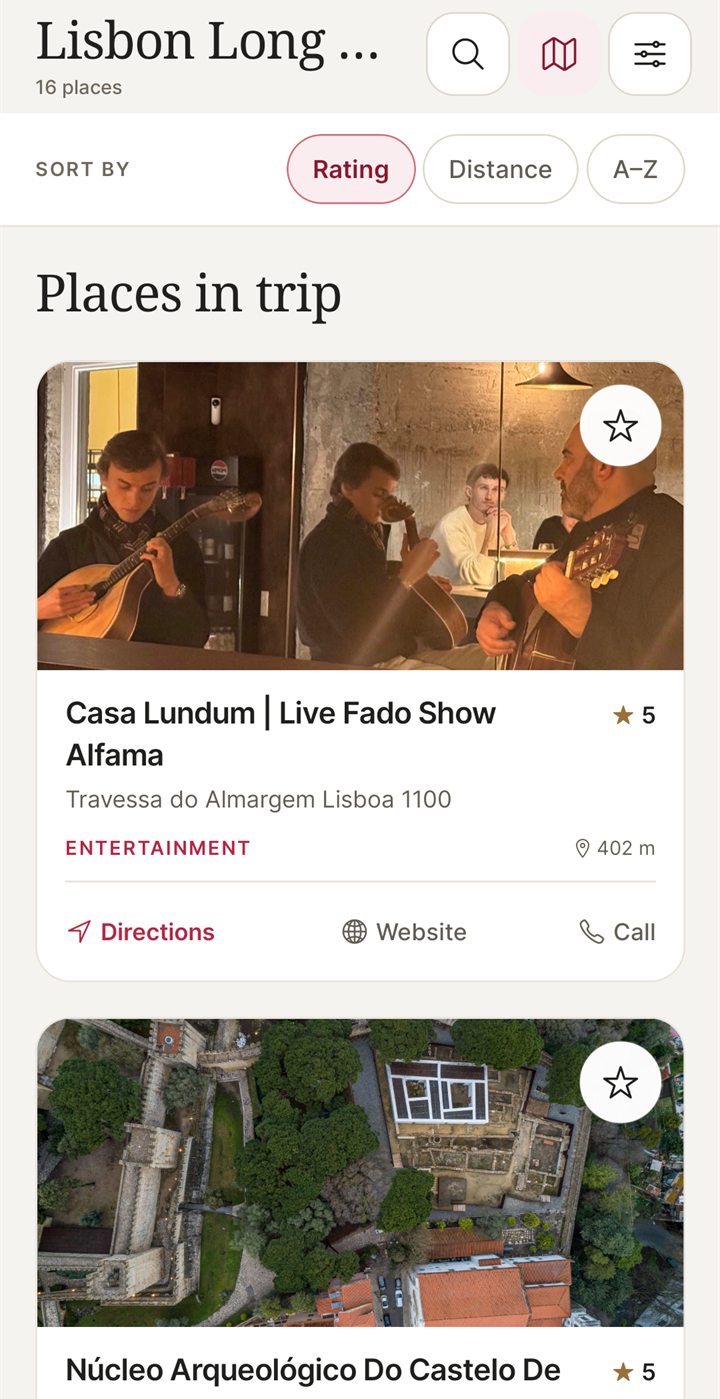
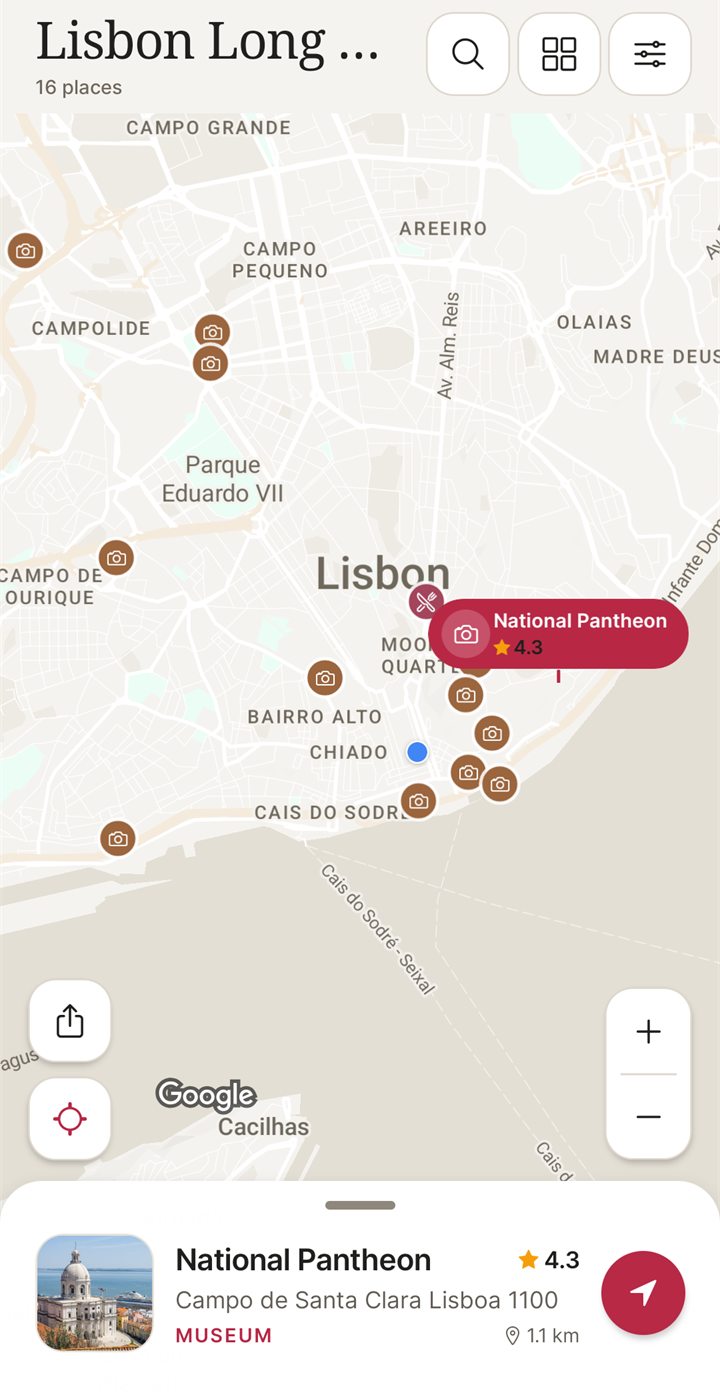
| NomadSwipe (Android, I built it) | No import of a pasted list. You pick a city and swipe real places; each yes is saved to the trip. Custom pins cover a place the cards miss. | Open a trip and every saved place is pinned on the trip map. The list sorts by rating, distance or A to Z. No day-by-day scheduler in the listing. | Up to 20 saved trips are available offline after you open them online; offline copies expire. | Free plan: 3 trips, 2 searched places saved to a trip a month and 2 custom pins a month, a daily limit on saves. Premium (Monthly or Lifetime, in the app) removes the limits. |
If you already have a clean sheet of 15 or 20 places, My Maps takes it in one import. If you want the places kept with days and routes inside a trip app, Wanderlog's pages describe that. NomadSwipe is a different approach, covered next.
ChatGPT trip planning vs a trip planner app
The two are not rivals. The question is which job each does better.
- Drafting: a chatbot is quick when you do not yet know what you want. It can turn a loose brief into a shape for the day.
- Seeing: a map tool wins once the places are fixed. You see distances, clusters and gaps, which text hides.
- Checking: neither replaces looking at a place's own listing for hours and closed days. That step is yours in both cases.
- Keeping: a trip app holds the places, ratings and directions on your phone for the trip, so the plan is not buried in a long conversation.
A sensible split is to draft with the chatbot, run steps 1 to 3 above, then move the surviving places into a map tool. For other ways to find places in the first place, see how to find things to do in a new city.
Builder notes: where NomadSwipe fits
I built NomadSwipe so that every card is a real saved place in a city, with its category, rating, distance and, where the place lists hours, whether it is open. You swipe or press Save, the place lands in the trip's shortlist, and the trip map pins it. That is a different route to the same map: instead of checking a chatbot's names one by one, you start from places that already exist on the cards. Opening a place shows photos and starts directions.
Two limits matter here. NomadSwipe does not import a pasted list, so a long chatbot plan means re-finding each place by swiping or searching, and the free plan's 2 searched places saved to a trip a month and 2 custom pins a month will not cover a 15-place list. And it is Android only today; iPhone is coming soon. If you want to import a sheet in one go, use My Maps from the table. The swipe travel apps comparison shows where NomadSwipe sits among similar apps.
Questions about turning a chatbot plan into a map
How do I turn a ChatGPT itinerary into a map?
Copy each place name into one list with its city, check that every place exists and is open on your day, then add the list to a map tool such as a Google Maps list, a My Maps layer or a trip planner app. Group the pins by neighborhood and give each group its own day.
Can I import a ChatGPT itinerary into Google My Maps?
Yes, by way of a spreadsheet. Google's My Maps help says you can import a CSV, XLSX or Google Sheet if it has a title row and a column of addresses or place names, up to 2,000 rows. Put one place per row, with the city in its own column, then import the file into a new layer.
Does ChatGPT trip planning give me opening hours?
I did not test that for this page, so I cannot say for any one product. Whatever the source of the itinerary, treat the hours in it as unconfirmed until you see them on the place's own website or map listing.
ChatGPT vs trip planner app: which should I use?
They do different jobs. A chatbot is a quick way to get a first draft of ideas and a day shape. A map or trip planner app holds the places as pins you can see, sort and open. Many people will want both: draft first, then pin and check.
Is NomadSwipe available on iPhone?
Not yet. NomadSwipe is Android only today, on Google Play. iPhone is coming soon.
Start from real places instead
I built NomadSwipe to swipe real places in a city, save the ones you like and see them on a map. It is Android only for now, and iPhone is coming soon.
Sources
- Google My Maps Help, import map features from a file: support.google.com/mymaps/answer/3024836
- Google My Maps Help, add places to your map: support.google.com/mymaps/answer/3024925
- Google Maps Help, create a list of places (Android): support.google.com/maps/answer/7280933
- Wanderlog FAQ: wanderlog.com/blog/faq
- Mapstr home page: mapstr.com
- Wikipedia, National Museum of Ancient Art (closure note, as cited in the Lisbon guide): en.wikipedia.org/wiki/National_Museum_of_Ancient_Art
- NomadSwipe facts: the public Google Play listing of NomadSwipe: Trip Planner and the Lisbon guide, checked 2 to 4 November 2026.