 NomadSwipe
How to Use Rome2Rio App in 5 Steps
How to use Rome2Rio app: enter where you are leaving from and where you are going, choose "See all options", compare the transport types, durations and price estimates it lists, open one to see its schedule, then follow the link to a partner to buy. Rome2Rio searches journeys and does not sell tickets itself.
The 5 steps at a glance
| Step | What you do | Where Rome2Rio says so |
|---|---|---|
| 1. Search a journey | Enter a departure and a destination, then "See all options" | How to Search for a Journey |
| 2. Read the results | Compare transport type, total duration and price estimate | Same article, plus transport types and how prices are set |
| 3. Open a schedule | Select an option, then choose a travel date and number of passengers | How to Search for a Journey |
| 4. Find tickets | Pick a departure time, then Select (desktop) or Find tickets (mobile) | How to Find Tickets |
| 5. Save the trip | Sign in, then create a trip in the Trip Planner | Trip Planner and Create an account |
What Rome2Rio is, from its own pages
Rome2Rio's help center describes it as "a global travel search engine that simplifies travel planning", with prices, durations and booking information from over 5,000 companies in 160+ countries. Its Google Play listing, updated 10 November 2026, shows 1M+ downloads and opens with "Find train, bus & ferry routes". That listing also says the app has door-to-door planning from any address or landmark and "Save and share routes and itineraries". For the company's background, partners and how its own pages disagree on counts, see apps similar to Rome2Rio.
Step by step
-
1. Search a journey.
The help article on searching says to open Rome2Rio, type your departure and destination into the two boxes and click "See all options". It says you can enter a country, city, town, village, address, landmark, station, or an airport name or code. The article is written for any browser on any device, so the button names in the phone app may differ.
-
2. Read the results.
The results page lists the ways to travel. Each one shows its transport type or types, total travel duration and a price estimate. The help center says Rome2Rio shows ten transport types: train, bus, fly, tram, ferry, taxi, drive, walk, shuttle and towncar. It adds that drive means self-drive, not car rental, and that walking is generally offered for trips up to 2 km, or up to 7 km when there are few other options. On price, it says estimates come from partnerships with ticketing providers and can change with availability and season, and that a range is shown when it has no exact figure. For drives it estimates fuel cost for a standard sedan, without tolls.
-
3. Open a schedule.
Select a transport type to open its schedule page. There you choose a travel date and the number of passengers and can read the operator's details. The help center says the operator information sits below the schedule.
-
4. Find tickets.
The ticket article gives two routes. On desktop, choose a departure time from the schedule, click the pink Select button and you are taken to a ticketing partner to complete the purchase. On mobile, tap a departure time, review the trip overview and tap the pink Find tickets button at the bottom to continue to a partner. It states that Rome2Rio does not sell tickets or process transactions. If no ticket button appears, the article says Rome2Rio does not offer tickets for that route and you should contact the operator, using the details in the Operator information section.
-
5. Save the trip with an account.
Saving needs an account. The account article says to click the pink Sign in button at the top right on desktop, or tap the icon at the top right and choose Profile on mobile web, then pick a sign-up option. In the Trip Planner article, mobile steps are: tap the Trips icon on the bottom toolbar, tap New, enter your journey details and tap Create trip. On desktop, search first, then click the Trips icon on the left; if you are signed in the trip saves automatically. The same article says you can remove or reorder saved trips and, on mobile, tap Explore hotels to see hotels near your destination. Both articles say the Trip Planner is "currently only available on desktop and mobile web browsers", not yet in the smartphone apps, which is a different claim from the app listing's "Save and share routes and itineraries". I did not test which is current, so check in the app you have.
One more step in the help center is the Experience tab, marked with an Eiffel Tower icon: search a destination, open the tab, browse the activities and finish booking with partner GetYourGuide. All the articles above were modified on 13 October 2026 according to the help center.
Where Rome2Rio stops
Every step above starts from two places you have already chosen. Rome2Rio answers how to get from one to the other and what it may cost. The pages I read do not describe browsing a city's restaurants, sights or bars, or ranking them, apart from the activity list in the Experience tab. That is a fair split of jobs, and it is why many trip plans need a second app for the days spent in each city.
Rome2Rio for the route, NomadSwipe for the places
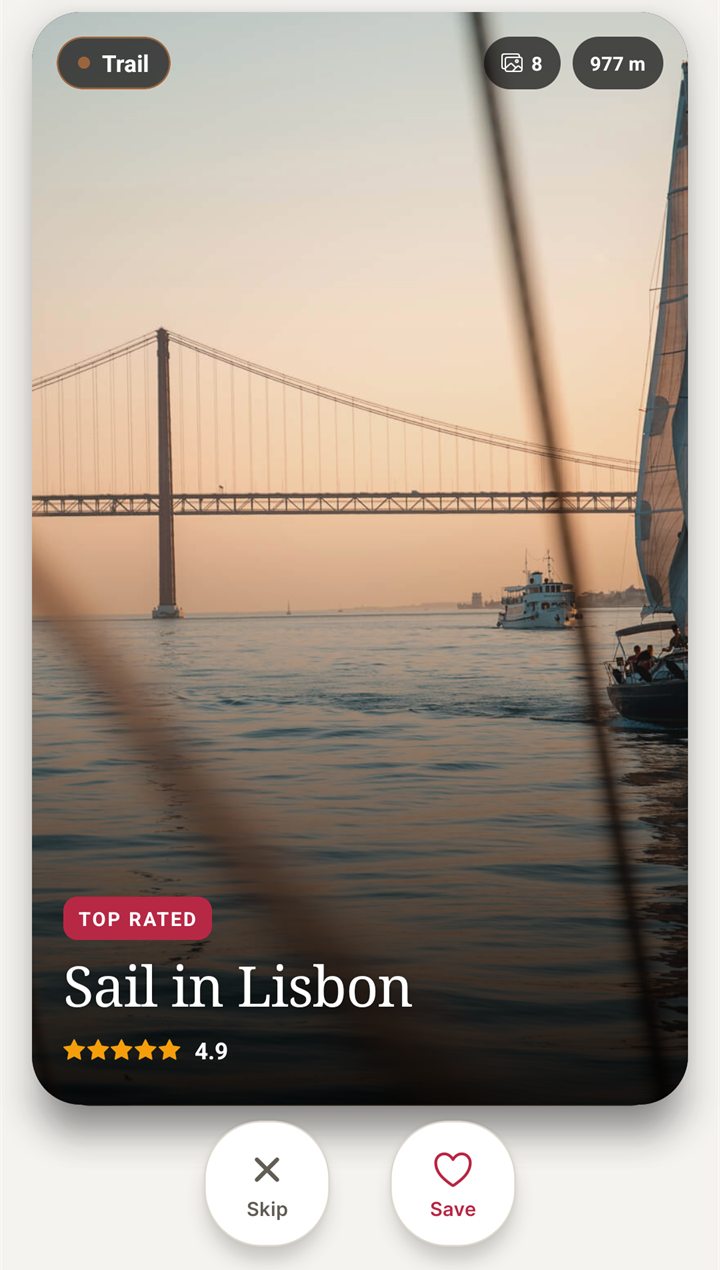
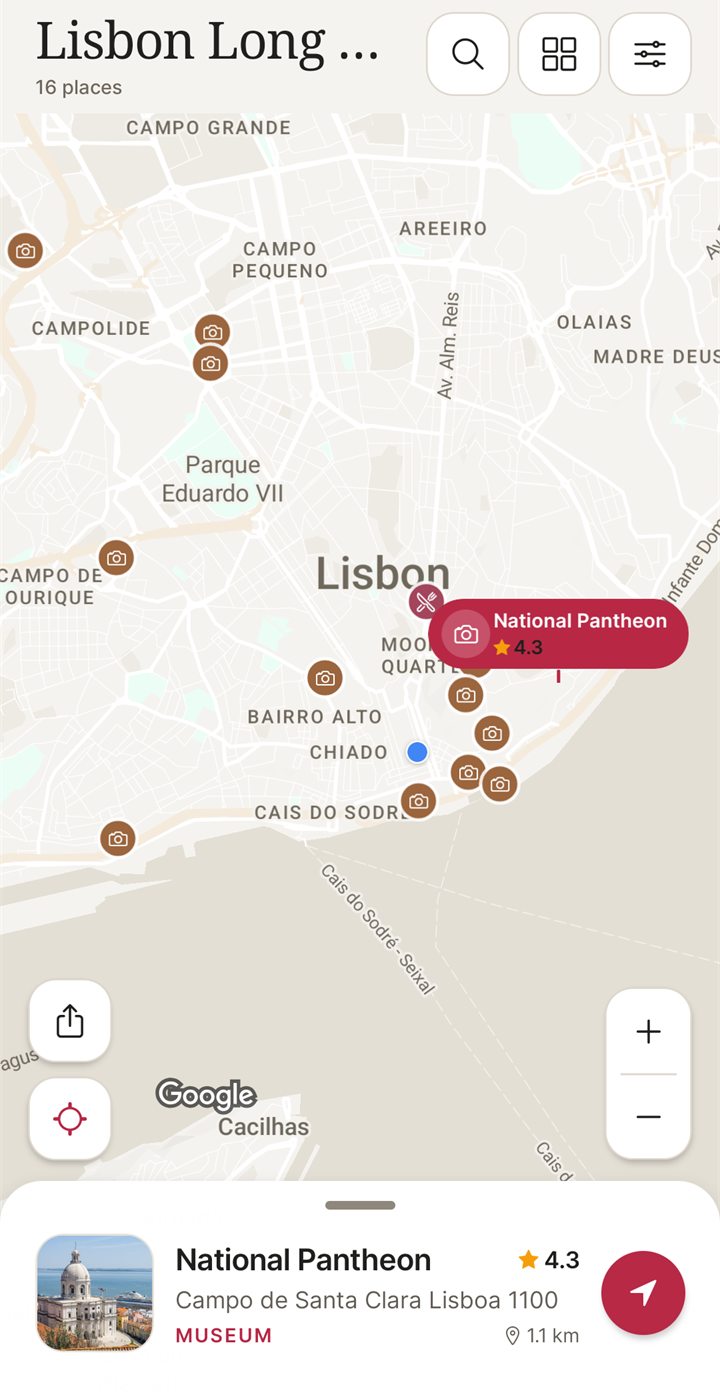
I built NomadSwipe, so weigh this section accordingly. NomadSwipe (Android) shows real places in a city as cards with category, rating, distance and opening status. You swipe right to save a place and left to skip it, and your saved places appear on a map and in a trip list you can sort by rating, distance or A to Z. It is not a route finder: it does not search trains, buses, ferries or flights, show fares or plan a journey between cities, which is exactly what Rome2Rio does. A workable split is to book the journey in Rome2Rio and build the days in NomadSwipe. The Lisbon sample trip in its Google Play listing has 16 places, all picked by swiping.
| Job | Rome2Rio | NomadSwipe (Android) |
|---|---|---|
| Compare train, bus, ferry and flight options between two places | Yes | No, it is not a route finder |
| Buy a ticket | Through a partner; Rome2Rio does not sell tickets | No |
| Decide what to see and eat in a city | Activity list in the Experience tab; no swiping or ranking described | Yes, swipe real places and save them |
| See saved places on a map | Saved trips; no place-discovery map described | Yes |
For the deciding half, how to find things to do in a new city shows the method, saving places for a trip covers the saving step and planning a weekend city break walks through a short trip. The best trip planner apps compared lists options that keep the whole trip in one place, and the same step-by-step format is used in how to use the Citymapper app, how to use Wanderlog and how to use TripIt. For getting around inside one city, Citymapper alternatives compares the transit apps.
Pair your route with a plan for the city
I built NomadSwipe to swipe real places in a city, save the ones you like and see them on a map. It is Android only for now.
Questions about using Rome2Rio
How do I use the Rome2Rio app?
Enter where you are leaving from and where you are going, then choose "See all options" to get a list of ways to travel, each with its transport type, total duration and a price estimate. Open one to see its schedule, pick a date and passengers, and continue to a partner to buy a ticket. Rome2Rio's help center describes these steps for a browser, and I did not run the app itself.
Can you book tickets on Rome2Rio?
Not directly. Rome2Rio's help center says it is a travel search tool and does not sell tickets or process transactions. Pressing Select on desktop or Find tickets on mobile takes you to a ticketing partner to finish the purchase, and if no ticket button shows, it says to contact the operator.
How do I save a trip on Rome2Rio?
Create an account, then use the Trip Planner. On mobile web, its help article says to tap the Trips icon, tap New, enter your journey details and tap Create trip; on desktop, search first, then click the Trips icon. The same article says the Trip Planner is currently only on desktop and mobile web browsers, not yet in the smartphone apps.
How accurate are the prices on Rome2Rio?
They are estimates. Rome2Rio's help center says prices can change with availability and seasonality and that it shows a range when it has no exact figure. For drives it shows estimated fuel cost for a standard sedan, without tolls or rental costs.
Can Rome2Rio help me decide what to do in a city?
Partly. Its help center describes an Experience tab that lists activities, and you finish booking one with partner GetYourGuide. Rome2Rio is mainly a journey search, and its pages do not describe swiping through or ranking places. I built NomadSwipe (Android) for that choosing part.
Does Rome2Rio work for a trip with several stops?
Its help center describes saving a trip in the Trip Planner, but I did not find a step-by-step description of building one with several stops in the pages I read. Check the Trip Planner on the web before you rely on it for a multi-city route.
The short version
To use Rome2Rio app, enter a departure and a destination, choose "See all options", compare the transport type, duration and price estimate of each result, open a schedule and continue to a partner to buy, as Rome2Rio's help center describes it. Saving trips needs an account, and the help center says that feature is for desktop and mobile web, not yet the phone apps. It answers how to get there, not what to do when you arrive.
Findings, method and sample
Sample and method. On 12 November 2026 I read 9 Rome2Rio pages: the help center FAQ folder, seven help articles (searching a journey, finding tickets, price estimates, transport types, the Trip Planner, creating an account and the Experience tab) and the Google Play listing. I took menu names, steps and limits only from them. Rome2Rio's home page and the /help address were not readable to me (a 404 on /help), so nothing here comes from the home page. I did not install or run Rome2Rio, so nothing here is a measured result or a personal experience of the product. NomadSwipe facts come from the app I built and its public Google Play listing.
- The help center says to enter a departure and destination and click "See all options"; results show transport type, total duration and a price estimate.
- It lists ten transport types and says prices are estimates, shown as a range when no exact figure exists.
- Rome2Rio says it does not sell tickets: Select (desktop) or Find tickets (mobile) leads to a partner.
- The Trip Planner needs an account and is stated to be only on desktop and mobile web, while the Play listing says "Save and share routes and itineraries".
- Not read, so not covered here: the app's own screens, the home page, how reliably routes and prices match real operators.
Limits: the help center describes a browser, and the phone app may label things differently. Listings describe what Rome2Rio says its app does, not how well it does it. The comparison with NomadSwipe is between a journey search and a place-discovery app, so it is a difference in job, not a ranking.
Sources
- Rome2Rio help center, FAQ folder: https://help.rome2rio.com/en/support/solutions/22000106990 (read 12 November 2026)
- How to Search for a Journey on Rome2Rio: https://help.rome2rio.com/en/support/solutions/articles/22000280935-how-to-search-for-a-journey-on-rome2rio
- How to Find Tickets on Rome2Rio: https://help.rome2rio.com/en/support/solutions/articles/22000282689-how-to-find-tickets-on-rome2rio
- How do you determine your prices: https://help.rome2rio.com/en/support/solutions/articles/22000239374-how-do-you-determine-your-prices-
- Which Transport Types Does Rome2Rio Show: https://help.rome2rio.com/en/support/solutions/articles/22000239368-which-transport-types-does-rome2rio-show-
- Trip Planner: https://help.rome2rio.com/en/support/solutions/articles/22000280937-trip-planner
- Create an account to save trips: https://help.rome2rio.com/en/support/solutions/articles/22000282684-create-an-account
- Find things to do with the Experience tab: https://help.rome2rio.com/en/support/solutions/articles/22000295536-find-things-to-do-with-the-rome2rio-experience-tab
- Rome2Rio Google Play listing: https://play.google.com/store/apps/details?id=com.rome2rio.www.rome2rio&hl=en&gl=US (updated 10 November 2026; read 12 November 2026)
- NomadSwipe facts: the public Google Play listing of NomadSwipe: Trip Planner (cards, swipe, save, map), as recorded in the project's play-listing notes, checked 2 November 2026.