 NomadSwipe
How to use Furkot in 8 steps
How to use Furkot: open furkot.com, click the orange Plan A Trip button, enter your start and end points and your dates, then click Done and Furkot plots the route. Add stops by clicking the map or typing an address, drag them into the order you want, and use Share to invite others. You do not need an account to start.
Key facts
- What it is: Furkot's help calls it a road trip planner. It says the same tool also plans motorcycle rides, biking trips, day hikes and city walks.
- How you start: the orange Plan A Trip button on the Furkot welcome page, with no sign-up. A guest's trips live in that one browser.
- The inputs: start and end points, dates, your usual driving hours and the kind of lodging you prefer.
- Price: free to start. A Furkot Pass is $14 for 1 year, and without one you can eventually only view a trip, not modify it.
- On a phone: it runs in the browser. Sign in once and add it to the home screen. Trips are then stored on the device for offline access.
The 8 steps at a glance
| Step | What you do | Where Furkot says so |
|---|---|---|
| 1. Open it | Click Plan A Trip as a guest, or sign up | Sign-up help page |
| 2. Fill in the trip | Start, end, dates, driving hours, lodging type, then Done | Planning a trip |
| 3. Read the first draft | Check the route, suggested hotels and marker colors | Planning a trip |
| 4. Add stops | Click the map, search an address, or use the Find drawer | Planning a trip; Finding points of interest |
| 5. Reorder and reroute | Drag stops in the Plan drawer, drag routes on the map | Drag and drop stops; Planning a trip |
| 6. Pick lodging | Use the Sleep drawer to replace or add overnight stops | Planning a trip |
| 7. Share | Ask Around, Invite, or publish a tripshot | Share your trip |
| 8. Take it on the road | Offline access, a navigation app, GPX export or print | Mobile and offline; Navigate your trip |
Step by step
-
1. Open Furkot and decide whether to sign up.
Furkot's sign-up page says you can try it without an account: one click on the orange Plan A Trip button on the welcome page. Without an account you are a guest, and your trips are tied to that browser through a small stored token. Furkot says that if you browse in private mode or clear website data, guest trips are lost when the browser closes, and that you cannot both browse privately and keep guest access. Sign up if the trip is real: an account gives access from other browsers and devices and is needed to share a trip. The account needs a nickname and a password, an email is optional, and you can instead sign in with Facebook, Google or TripIt. Furkot warns that an account without an email may be impossible to recover if you forget the password.
-
2. Fill in the trip form and click Done.
The Planning a trip page walks through the form. Start and end points can be cities, addresses or names of places, and Furkot says you can be as vague as you like because you can change them later. After Next you enter dates, which do not have to be exact, and Furkot says real dates let you see whether the trip fits your schedule and whether you will reach a place on a crowded Sunday or a calm Tuesday. Then you give your driving habits, meaning the time you usually start and the time you want to reach a hotel or campsite, and pick the lodging type you will use most: hotels, private or semi-private houses, B&Bs or campgrounds. You can change the type for a single day later.
-
3. Read the first draft and learn the colors.
On Done, Furkot plots the route and calculates the time. The help page gives an example: with 9am to 6pm driving days, Boston to Devils Tower takes at least 3 days, and Furkot adds suggested hotels to fit those days and adjusts arrival times across time zones. The Trip drawer shows the stats. Every trip is stops joined by routes, and stop markers carry meaning by color: blue means everything is fine, red a potential problem and yellow that work remains. The goal, the page says, is to get every marker to blue. Click a red stop to read why. For something that must happen at a set time, such as a concert, you can lock its date and time.
-
4. Add stops: map click, address, or the Find drawer.
You can add stops in any order, and Furkot works out the efficient sequence, though you can reorder later. The Planning a trip page names two ways to add one: click the map, which shows an address you can rename and annotate before pressing Save, or press Add new stop and type an address or a place name. Each stop gets a default duration of one hour, which you can change per stop and, for the whole trip, in the Trip drawer. If a stop's departure passes your end-of-day time, Furkot adds an overnight stop and moves the visit to the next day.
For ideas, the Find drawer holds attractions, as Finding points of interest explains. It has nine category buttons, among them museums and man-made structures, parks and natural features, outdoor sports, beaches and water, scenic byways, unpaved roads and trails, and events. You can show attractions over the whole map, around a selected stop or along the route. Press Stop to add one, or Maybe to add it as a skipped stop, which stays on the map in gray and is ignored when the route is calculated. Adding all displayed places as skipped stops in bulk is listed as a Furkot Pass feature.
-
5. Reorder stops and reshape the route.
The reorder page says to click and hold a stop in the Plan drawer and drag it up or down; an outlined empty slot shows where it will land and the list scrolls if needed. Furkot routes for efficiency, so this is for when you want a different order, such as starting a Spain trip in Malaga instead of Madrid. For the road itself, the Planning a trip page says you can grab a route and drag it elsewhere, and set the whole trip, or one route, to prefer backroads over highways. The page dates are old (the reorder article is from 2013), so button names may have moved.
-
6. Pick the lodging.
Furkot suggests hotels or campgrounds while you plan, but the help page says to look for better ones once the route is settled. In the Plan drawer, the Filter stops button hides everything except overnight stops. In the Sleep drawer you can add a lodging as a new stop, use it to replace the selected overnight stop, or save it as a backup in case your first choice is not available. The feature overview says Furkot shows the current price if it has one and otherwise an average for that hotel, and advises double-checking before you book.
-
7. Share the trip.
The Share your trip page lists three routes, all under the share button at the top of the Trip drawer. Ask Around makes a planning board that anyone with the link can add suggestions to, and those arrive as skipped stops in your Plan drawer. Invite sends an email, or you can use Copy Link, and each person gets full or view-only access. Full access lets them change dates and times, add and delete stops and add notes. Only one person can edit at a time, and others press the synchronize button to reload after a change. Publish creates a read-only tripshot page with a map and the list of days and stops, no dates shown, which does not update when you change the trip until you publish again.
-
8. Take it on the road.
Furkot's Mobile and offline page says to open furkot.com in your phone's browser, sign in once, and optionally add it to the home screen. Furkot then stores your list of trips and all ongoing and future trips on the device, and any past trip you open. It adds that iPhone and iPad home-screen use requires a password login. Furkot can cache an OpenStreetMap road map for offline use, but caching the whole trip map before viewing it needs a Pass. The Navigate your trip page is clear that Furkot does not replace a navigation app: its navigate button hands a stop to one, and the app may choose a different route than yours. Basic GPX export is free. Printing is described as a backup only, and turn-by-turn printing is Pass-only.
What is free and what needs the Furkot Pass
The Furkot Pass page lists what a $14, 1-year pass adds. Reading it next to the step pages gives this split. It is a summary of Furkot's wording, not something I tested.
| Task | Without a Pass | With a Pass |
|---|---|---|
| Plan a route, add stops, use the Find and Sleep drawers | Described without a Pass requirement | Same |
| Export | Basic GPX | Choose the file format and content |
| Import files and websites | Not available, per the Pass list | Yes |
| Cache the whole trip map before viewing it | Not available | Yes |
| Print turn-by-turn directions | Not available | Yes |
| Add points of interest in bulk as skipped stops | Not available | Yes |
| Tags and expense tracking | Not available | Yes |
| Elevation profile, topo and satellite maps | Not available | Yes |
| Edit a trip after Furkot asks you to buy | You can view it but not modify it | Yes |
Furkot also says a pass can be earned as a reward when you book through its partner links, and a reward pass may last less than a year. I did not see a stated number of trips or stops after which it asks you to buy.
Where Furkot stops
Read in order, Furkot's pages describe a route-first tool. You say where you start and end, and everything else hangs on that line: stops along it, nights on it, driving time between them. The Find drawer is the discovery part, and it is built around categories and a map you pan across. Nothing I read describes browsing places in a single city as a stack of cards and ranking what you like before a route exists, and Furkot does not claim it does. That is not a flaw, since a road trip planner needs the route first. It does mean that for a city stay, where the question is which places to visit rather than how to drive between them, the form in step 2 asks for things that matter less.
Furkot for the route, NomadSwipe for choosing places in a city
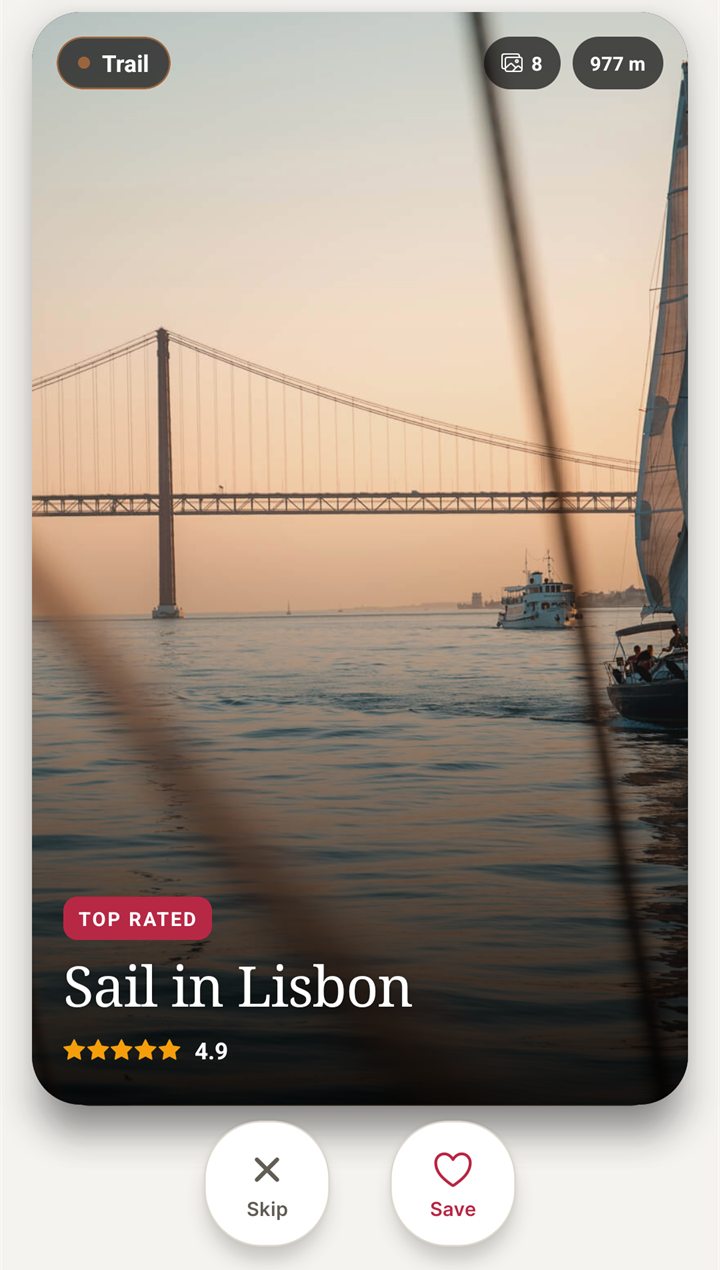
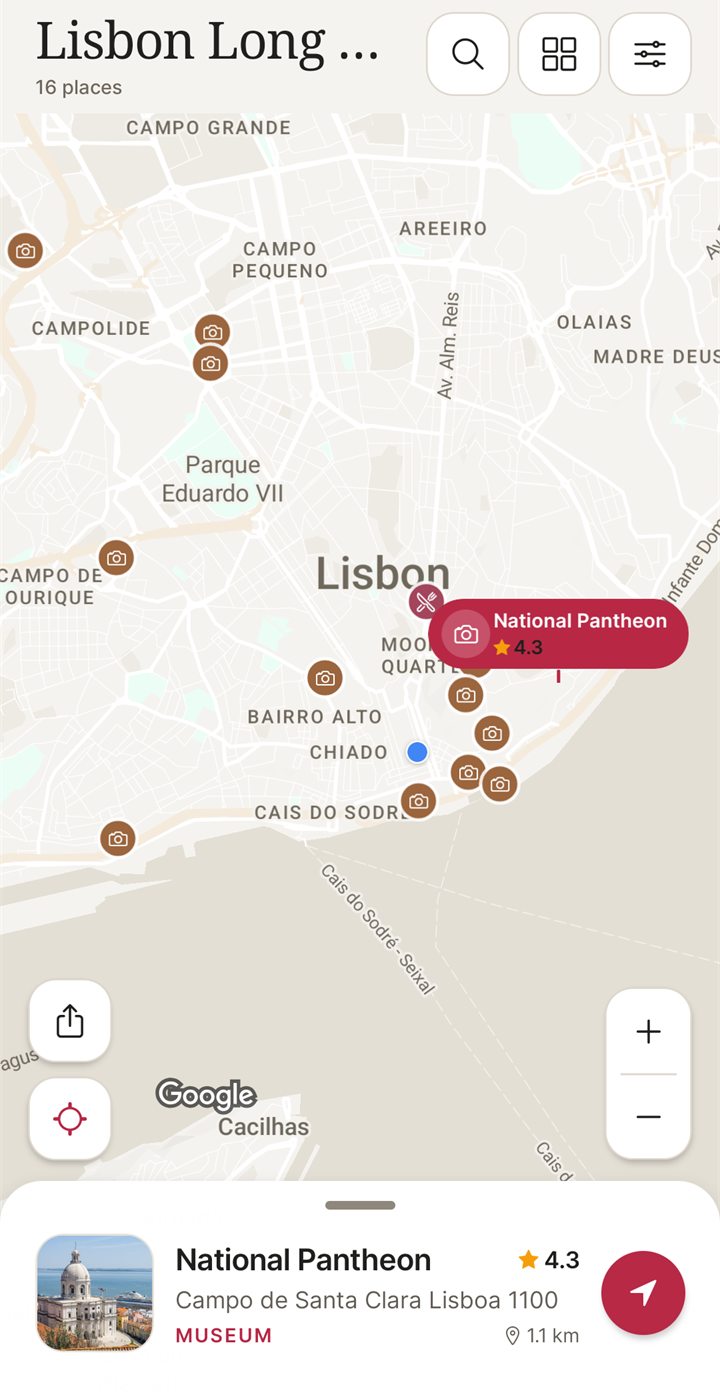
I built NomadSwipe, so weigh this section accordingly. NomadSwipe (Android) shows real places in a city as cards with the place's category, rating, distance and opening status. You swipe right to save a place and left to skip it, and the saved places appear on a map and in a trip list you can sort by rating, distance or A to Z. One sample trip in its store listing is a long weekend in Lisbon with 16 places, all picked by swiping. It does not plan a drive, add overnight stops or calculate routes between them. A sensible split is Furkot for a trip where the driving is the plan, and NomadSwipe when you are picking what to see in one place. iPhone is coming soon.
| Job | Furkot | NomadSwipe (Android) |
|---|---|---|
| Plan a driving route with dated overnight stops | Yes, as it describes | No |
| Swipe through real places and save the ones you like | Not described on the pages I read | Yes |
| See your picks on a map | Yes, stops and routes on a map | Yes |
| Browse attractions by category | Find drawer, nine category buttons | Cards for places in the city you pick |
| Platforms | Browser; home-screen app described | Android today |
For choosing places first, how to save places for a trip shows the method and planning a trip on a map covers the map side. Furkot can sync with TripIt, which its export help calls the primary synchronization partner, so how to use TripIt is the related walk-through. The same step-by-step format is used in how to use Wanderlog and how to use Funliday. For other road-trip tools, see Roadtrippers alternatives, and for the wider field the best trip planner apps compared. A spreadsheet-based option is described in how to use Travel Mapper.
Pick the places before you plan the days
I built NomadSwipe to swipe real places in a city, save the ones you like and see them on a map. It is Android only for now.
Questions about using Furkot
How do I use Furkot?
Open furkot.com and click the orange Plan A Trip button, enter a start and end point and your dates, then click Done. Furkot plots the route and suggests hotels. Add stops by clicking the map or searching an address, drag them into order, and use Share to invite others. This comes from Furkot's help pages, and I did not run the app.
Do I need an account to use Furkot?
No. Furkot's sign-up page says you can try it as a guest with one click on Plan A Trip. A guest's trips are tied to the one browser, so sign up if you want them on other devices or want to share a trip. Private browsing that clears website data loses guest trips, per the same page.
Is Furkot free?
You can start planning without paying. Furkot's Pass page says a pass costs $14 for 1 year, that it will at some point ask you to buy one, and that without a pass you can still view a trip but not modify it. Some features, such as printing turn-by-turn directions and importing files, are listed as Pass-only. Read on 13 November 2026.
Does Furkot work offline?
Partly, as its help describes it. After you sign in once, Furkot stores your ongoing and future trips on the device so you can open them without a connection. Caching the entire map for a trip before you view it needs a Furkot Pass. I did not test offline use.
Can I plan a trip with other people in Furkot?
Yes, per its sharing page. You invite people by email or a copied link and give each full or view-only access. Only one person can change the trip at a time, and others press the synchronize button to reload. Sharing needs an account, not a guest session.
The short version
To use Furkot, click Plan A Trip on furkot.com, enter your start, end, dates, driving hours and lodging type, read the first draft, add stops from the map, an address or the Find drawer, drag them into order, pick lodging in the Sleep drawer and share the trip by invite or tripshot. You can start as a guest, but sign up for a real trip. Furkot is built around a route, so it answers how a trip fits together, not which places in a city you personally like. Some conveniences, such as printed turn-by-turn directions, file import and whole-map caching, need the $14 Furkot Pass.
Findings, method and sample
Sample and method. I read 11 official Furkot help pages on 13 November 2026: the help index, Planning a trip, Do I have to sign up, Furkot Pass, Finding points of interest, What Furkot is good for, Drag and drop stops, Share your trip, Mobile and offline, Navigate your trip and Export, import, synchronize. I took step names, features and limits only from them. I did not install or run Furkot or sign in, so nothing here is a measured result or a personal experience of the product. The help pages carry their own dates, from 2013 to June 2026, so some button names and menus may have changed. NomadSwipe facts come from the app I built and its public Google Play listing.
- The sign-up page says you can start as a guest with one click, with trips tied to the browser, and that sharing needs an account.
- The planning page lists the form inputs: start and end, dates, driving start and arrival times, and lodging type of hotel, house, B&B or campground.
- Marker colors are blue for fine, red for a potential problem and yellow for work still to do.
- The sharing page lists Ask Around, Invite with full or view-only access, and a read-only tripshot, with one editor at a time.
- The mobile page says trips are stored on the device after one online sign-in, and that caching the whole map needs a Pass.
- Not read, so not covered here: in-app screens, the expense-tracking and tag pages, how reliable offline use is in practice, and any store app.
Limits: these are Furkot's statements about itself, not tested results. The comparison with NomadSwipe is between a route planner and a place-picking app, so it is a difference in job, not a ranking.
Sources
- Furkot help index: https://help.furkot.com (read 13 November 2026)
- Planning a trip: https://help.furkot.com/getting-started/planning-a-trip.html (read 13 November 2026)
- Do I have to sign up to use Furkot: https://help.furkot.com/getting-started/signup.html (read 13 November 2026)
- Furkot Pass: https://help.furkot.com/getting-started/furkot-pass.html (read 13 November 2026)
- Finding points of interest: https://help.furkot.com/getting-started/attractions.html (read 13 November 2026)
- What Furkot is good for: https://help.furkot.com/getting-started/all-features.html (read 13 November 2026)
- Drag and drop stops to reorder: https://help.furkot.com/how-to/reorder-stops.html (read 13 November 2026)
- Share your trip: https://help.furkot.com/how-to/share-trip.html (read 13 November 2026)
- Mobile and offline: https://help.furkot.com/features/mobile-apps.html (read 13 November 2026)
- Navigate your trip: https://help.furkot.com/how-to/navigate-your-trip.html (read 13 November 2026)
- Export, import, synchronize: https://help.furkot.com/how-to/import-export-synchronize.html (read 13 November 2026)
- NomadSwipe facts: the public Google Play listing of NomadSwipe: Trip Planner (cards, swipe, save, map), as recorded in the project's play-listing notes (ASO listing text), re-read 13 November 2026.