 NomadSwipe
How to use Funliday in 5 steps
How to use Funliday: enter a destination, your dates and interests, let its AI draft the itinerary, drag stops to rearrange them, then share the trip so companions can edit it with you. You can also add places by hand from its attraction listings. Funliday builds the plan for you; it does not make you pick places one by one.
The 5 steps at a glance
| Step | What you do | Where Funliday says so |
|---|---|---|
| 1. Get in | Install it or use desktop, then log in with a third-party account | Google Play listing: iOS, Android and desktop. FAQ: third-party login methods |
| 2. Start a trip | Enter a destination, dates, budget and interests | AI page: "Choose a Destination" and "Set Your Preferences". FAQ: destination and number of days |
| 3. Adjust the draft | Drag and drop stops; routes and timing update | AI page: "Customize Freely" |
| 4. Add places yourself | Browse attractions and add them, or import a ChatGPT draft | Listings: explore and add to the itinerary. AI page: import from ChatGPT |
| 5. Share and check limits | Share the trip, co-edit, read directions, know what is offline | Listings and FAQ below |
What Funliday is, from its own pages
Funliday's FAQ opens by calling it "one of Asia's largest AI-powered travel planning platforms", which is Funliday describing itself. Its Google Play listing says it is a trip planning app that helps you manage trips, find local attractions and get directions, and that it supports iOS, Android and desktop. The listing showed an update date of 10 November 2026. The Apple listing is titled "Funliday - Travel Planner".
Step by step
-
1. Get in and log in.
The Play listing says Funliday runs on iOS, Android and desktop, so you can start on a laptop and carry on in the app. The FAQ explains how accounts work: Funliday uses third-party login methods, so your trips belong to the login you used. If trips seem to vanish, the FAQ says to work out which method you used before and log in again with the same one. For Facebook it says the usual cause is having more than one Facebook account, and suggests logging out of Facebook in your phone's own browser first.
-
2. Start a trip with a destination and dates.
Funliday's AI trip planner page lays out four steps. First "Enter the city or country you want to visit". Then "Tell the AI your travel dates, budget, and interests". The FAQ gives a shorter version, saying you enter your destination and number of days. The page says the AI then "creates a full itinerary with attractions, restaurants, and routes", and the FAQ puts the time at 30 seconds, with an optimized visit order and estimated travel times between stops. Both are Funliday's claims and I did not time them.
-
3. Drag and drop to fix the draft.
The AI page's fourth step reads "Drag and drop to rearrange", and says routes and timing update automatically. The FAQ repeats it for planners starting from nothing: drag and drop to adjust, then share. In practice that means the generated plan is a starting point, and the page treats your edits as the real work. Funliday does not say how many attractions a draft contains or how it picks them.
-
4. Add your own places.
Both store listings describe the manual route: Funliday offers thousands of destinations, and you explore the places that interest you and add them to the itinerary. The Apple listing adds a share extension, so on iOS you can add attractions to Funliday from Safari. The AI page lists another way in: a trip you drafted in ChatGPT can be imported "with one click", with no need to re-enter anything. I read no page that says which formats the import accepts, so test it with a small trip first.
-
5. Share the trip, read directions, check the limits.
Sharing: the listings say you can share an itinerary by email, WhatsApp and Line, and the FAQ says you can share with companions for collaborative editing. The Play listing lists travel groups with invitations to friends. Directions: both listings say Funliday provides driving, walking and public transit directions. A caveat from the FAQ: on the map, routes are shown as straight lines for now, though it says the route information and estimated times are accurate. Offline: the Play listing says it offers an offline trip, and the Apple listing says offline trips except maps. Price: the FAQ says all of its features are completely free, including AI itinerary generation. I did not check any of that inside the app.
Where Funliday stops
Read in order, Funliday's pages describe one workflow: you state a destination, the AI produces a full itinerary, and you reshape it. The pages say little about choosing among places yourself. Nothing I read describes browsing a city's places as a stack of cards and ranking what you like before a plan exists, and Funliday's pages do not claim it does. That is not a flaw, since drafting a plan for you is the product. It does mean the shape of the trip starts with the AI's picks, not yours.
Funliday for drafting a trip, NomadSwipe for choosing the places
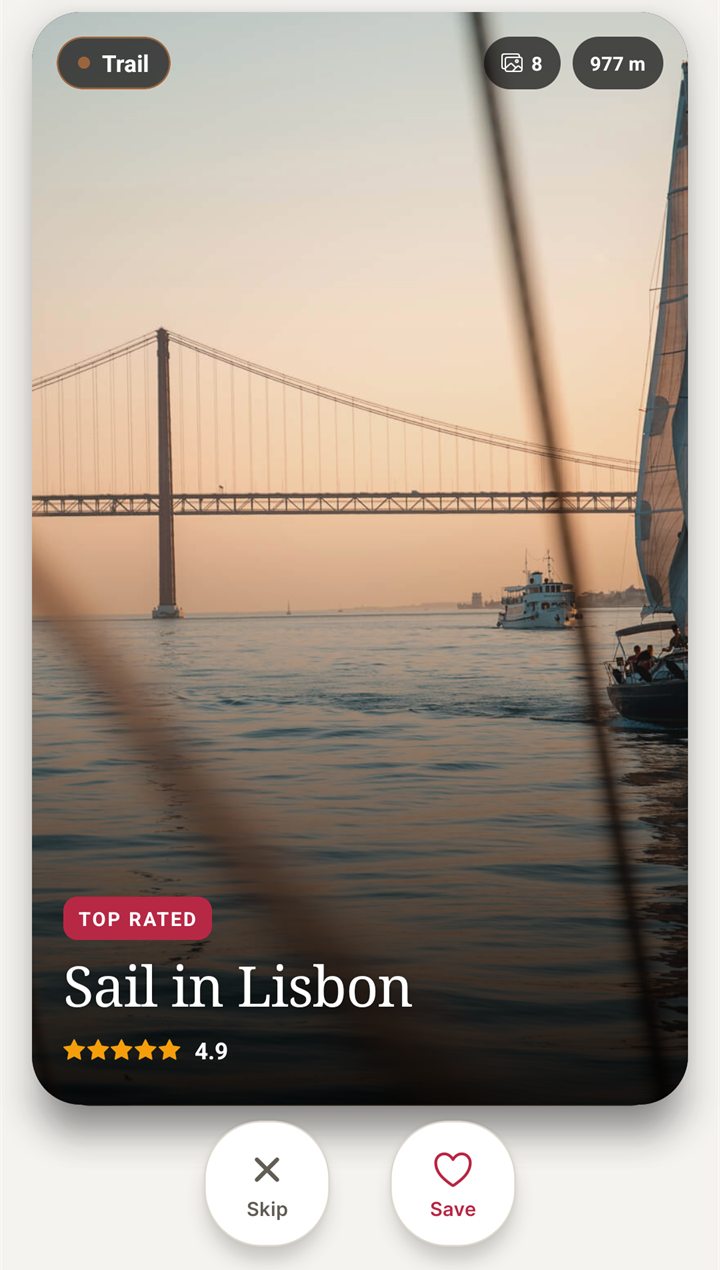
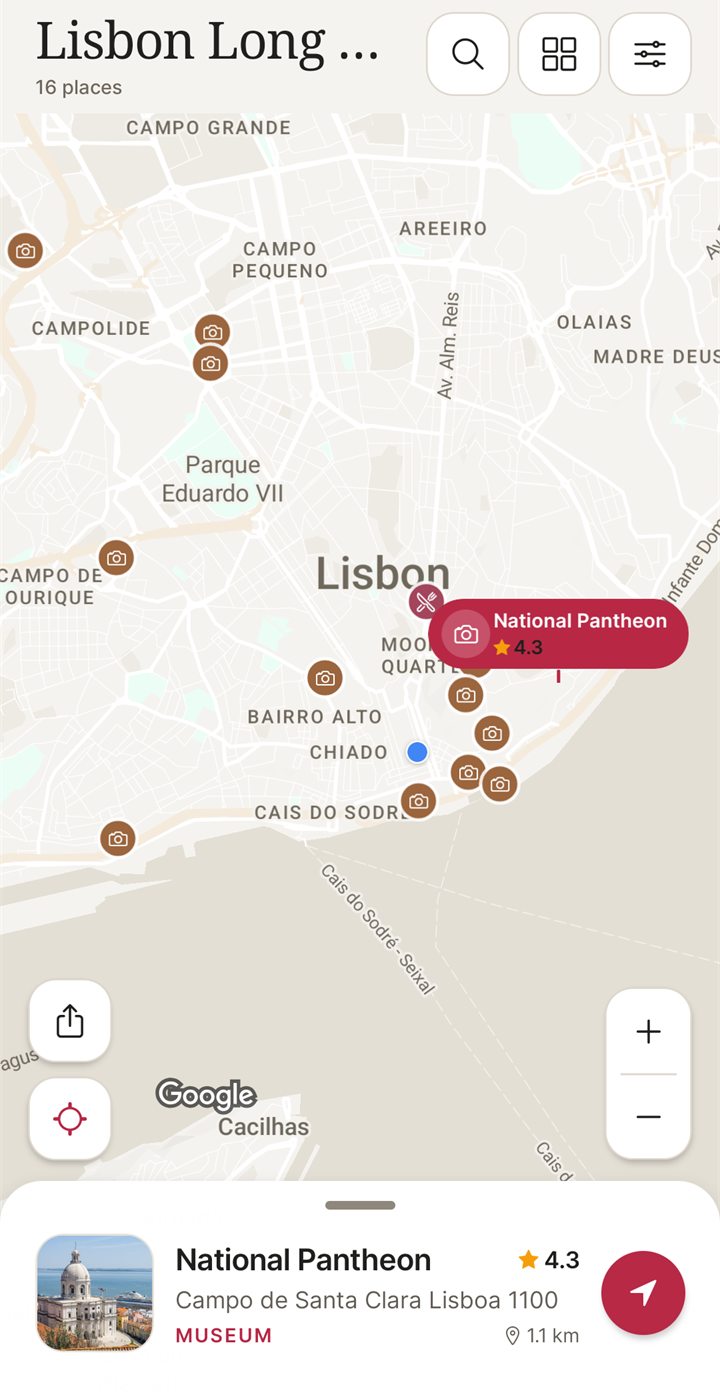
I built NomadSwipe, so weigh this section accordingly. NomadSwipe (Android) shows real places in a city as cards with category, rating, distance and opening status. You swipe right to save a place and left to skip it, and the saved places appear on a map and in a trip list you can sort by rating, distance or A to Z. One sample trip in its store listing is a long weekend in Lisbon with 16 places, all picked by swiping. It does not generate an itinerary for you. A sensible split is to pick places in NomadSwipe and use a planner such as Funliday if you want a drafted day-by-day route. iPhone is coming soon.
| Job | Funliday | NomadSwipe (Android) |
|---|---|---|
| Get an AI-drafted itinerary from a destination and dates | Yes, as it describes | No |
| Swipe through real places and save the ones you like | Not described on the pages I read | Yes |
| See saved places on a map | Map with route lines described in its FAQ | Yes |
| Drag stops to reorder a plan | Yes, as it describes | Trip list sorted by rating, distance or A to Z |
| Platforms | iOS, Android and desktop, per its Play listing | Android today |
For more on choosing places first, how to save places for a trip shows the method, and planning a trip on a map covers the map side. If you start from a ChatGPT draft, turning a ChatGPT itinerary into a map is the related job. The same step-by-step format is used in how to use Wanderlog, how to use TripIt and how to use the Citymapper app. For other AI planners, see Layla alternatives and Mindtrip alternatives, and for the wider field the best trip planner apps compared or swipe-style travel apps.
Pick the places before you plan the days
I built NomadSwipe to swipe real places in a city, save the ones you like and see them on a map. It is Android only for now.
Questions about using Funliday
How do I use Funliday?
Enter a destination and your dates, let Funliday's AI draft an itinerary, then drag stops to rearrange them. You can also add places yourself from its attraction listings and share the trip so companions can edit it with you. Funliday's own pages describe these steps, and I did not run the app.
Is Funliday free to use?
Funliday's FAQ says all of its features are completely free, including AI itinerary generation, attraction search, travel guide browsing and trip sharing. That is Funliday's own statement, read on 12 November 2026, and I did not check it inside the app. Look at the app before you rely on it.
Can I co-edit a Funliday trip with other people?
Yes, according to Funliday. Its FAQ says you share the trip with travel companions for collaborative editing, and its Google Play listing lists travel group support with invitations to friends. I did not test how smoothly co-editing works.
Does Funliday work offline?
Partly, as Funliday describes it. Its Google Play listing says it offers an offline trip, and its Apple listing says offline trips, except maps. I did not test either, so check in the app which parts of a trip you can open without a connection.
Why are my Funliday trips missing after I log in again?
Funliday's FAQ says it uses third-party login methods, so you should confirm which method you used before and log in with the same one. For Facebook it says this usually happens with more than one Facebook account, and suggests logging out of Facebook in your phone's browser, then logging back in to Funliday.
The short version
To use Funliday, enter a destination and dates, let its AI draft the itinerary, drag the stops into the order you want, add any places of your own and share the trip for co-editing, as Funliday's own pages describe it. It is built to hand you a finished draft quickly, so it answers what a trip could look like, not which places you personally like. Use it for the first and a place-picking app for the second.
Findings, method and sample
Sample and method. I read 4 official Funliday pages on 12 November 2026: the English FAQ, the AI trip planner page, the Google Play listing and the Apple listing. I took step names, features and claims only from them. I did not install or run Funliday, so nothing here is a measured result or a personal experience of the product. Funliday's homepage and blog index loaded only a page title when I fetched them, and I found no separate help center, so they are not used. NomadSwipe facts come from the app I built and its public Google Play listing.
- The AI page lists four steps: choose a destination, set dates, budget and interests, generate the itinerary, then drag and drop to rearrange.
- The FAQ states a 30-second draft time, an optimized visit order, travel-time estimates between stops, and sharing with companions for collaborative editing.
- Both listings describe adding attractions to an itinerary, driving, walking and public transit directions, and sharing by email, WhatsApp and Line.
- The Play listing says iOS, Android and desktop, updated 10 November 2026; offline is "an offline trip" on Play and "offline trips (except maps)" on Apple.
- The FAQ says map routes are shown as straight lines for now, and that logins are third-party, so trips follow the login method.
- Not read, so not covered here: in-app screens and menus, any step-by-step help center, how the ChatGPT import behaves, and how reliably any feature works.
Limits: these are Funliday's statements about itself, not tested results, and some pages are undated, so menu names and claims may have changed. The comparison with NomadSwipe is between a trip drafter and a place-picking app, so it is a difference in job, not a ranking.
Sources
- Funliday FAQ: https://www.funliday.com/en/faq (read 12 November 2026)
- Funliday AI trip planner: https://www.funliday.com/ai (read 12 November 2026)
- Funliday Google Play listing: https://play.google.com/store/apps/details?id=com.funliday.app&hl=en (read 12 November 2026)
- Funliday Apple listing: https://apps.apple.com/app/funlidays/id905768387 (read 12 November 2026)
- NomadSwipe facts: the public Google Play listing of NomadSwipe: Trip Planner (cards, swipe, save, map), as recorded in the project's play-listing notes, checked 2 November 2026.